How to create an account
Purpose
Section titled “Purpose”Create your own account in LCAbyg, so you can sign in and make projects.
Prerequisites
Section titled “Prerequisites”- An email address you have access to. You have to verify it before you can sign in.
- Do not create an account yourself if you need to join an organization that already uses LCAbyg. An account you create yourself gets its own, new organization. Ask an owner of the organization to create you as a user instead. You then get a welcome email with a link to set your password.
LCAbyg runs in the browser at app.lcabyg.dk. There is nothing to install. LCAbyg works in Chrome and Edge version 111 or newer, Firefox version 128 or newer, and Safari version 16.4 or newer, including on iPhone and iPad. In an older browser, parts of the program may look wrong or stop working.
- Go to app.lcabyg.dk, and click create a new account under the heading Sign in to your account.
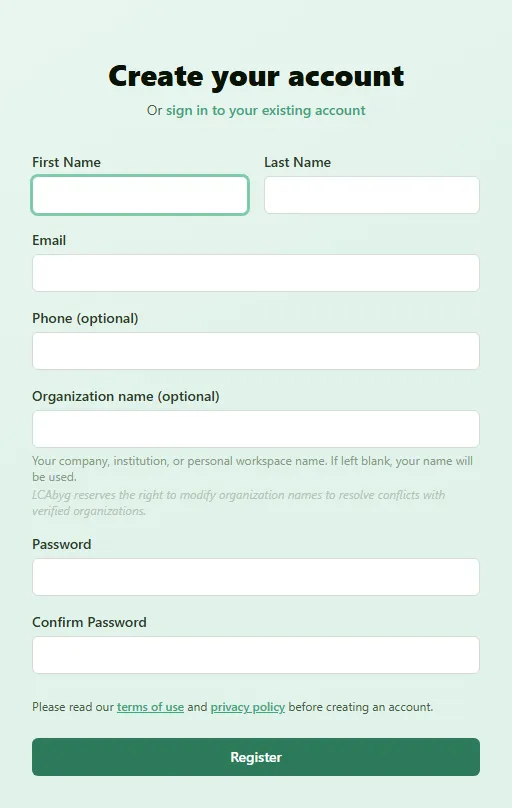
- Fill in First Name, Last Name and Email. Phone is optional.
- Optionally type an Organization name: your company, your institution or your personal workspace. If you leave it empty, your name is used.
- Choose a Password, and type it again in Confirm Password. The password must have at
least 8 characters, with at least one upper-case letter, one lower-case letter, one digit and
one of the characters
@ $ ! % * ? &. The meter under the field shows which requirements are met. - If there is an I am a student field and you are a student, tick it to apply for free student access. Student licences must not be used commercially.
- Tick I accept the terms of use. The link in the text opens the terms in a new tab, and without the tick you cannot create the account. Below the field there is a link to the privacy policy, which explains how LCAbyg handles your data. If there is a security check, complete it.
- Click Register. The page now says that you need to verify your email, and which address the email was sent to.
- Open the email from LCAbyg, and click the link in it. The link is valid for 7 days.
Result
Section titled “Result”The Email Verification page says your email is verified, and you can now sign in with your email and password.
Your acceptance of the terms of use is saved with the account, so you are not asked for it again at your first sign-in. If the terms are updated later, you have to accept the new version, see How to sign in and out.
You are the owner of a new organization with the name you typed, or with your own name. If the name already exists, it automatically gets a sequence number. You can change the name later under Organization. LCAbyg may change an organization name that conflicts with a verified organization.
If you ticked I am a student, you can see the status of the application under Settings. If you use an email address from a known educational institution, you get access straight away. Otherwise LCAbyg reviews the application, and you are told by email.
If the email does not arrive
Section titled “If the email does not arrive”- The email can take a few minutes. Also look in your spam or junk folder.
- Try to sign in. If the account is not verified yet, the sign-in page shows the button Resend verification email. A link in an earlier email still works, as long as it has not expired.
- If the link has expired, the Email Verification page shows a field where you can type your email and get a new link.