Models
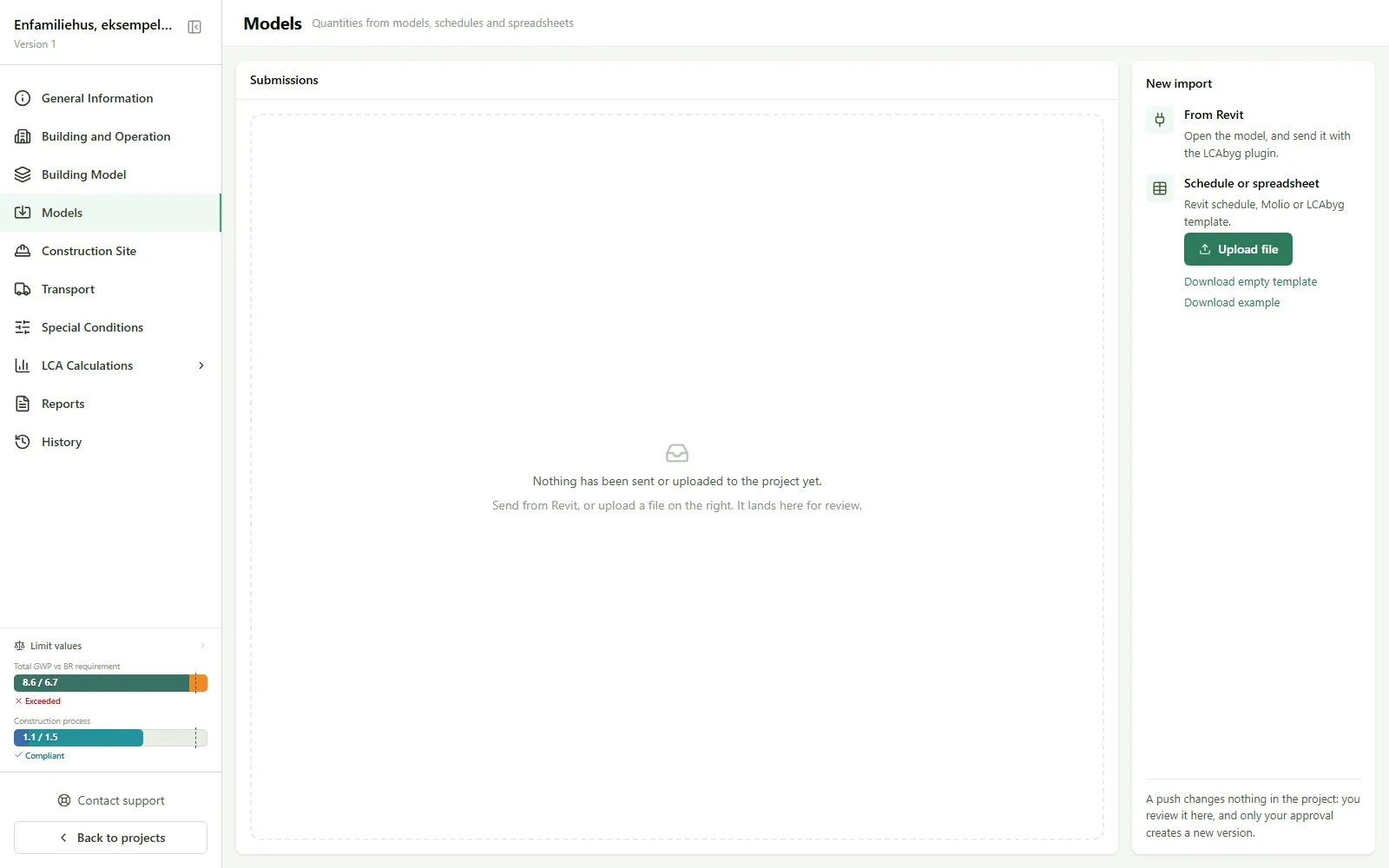
Quantities from your model, sent to the project with LCAbyg’s plugin for Revit or Rhino, or uploaded as a schedule or spreadsheet. Opened via Models in the project menu. If submissions are waiting for review, their number stands next to the menu item.
A submission changes nothing in the project: you review it here, and only your approval creates a new version.
Submissions
Section titled “Submissions”The page always opens on the list of submissions, newest first. Each row shows:
| Column | Meaning |
|---|---|
| Source | Where the quantities come from: Revit or Rhino (plugin), Revit schedule or Spreadsheet (upload) |
| Model or sheet | The name of the model or spreadsheet |
| Sent by | Who sent or uploaded it |
| Date | When |
| Status | Awaiting review, Approved, Discarded or Superseded. An approved submission also shows Became with a link to the version it became |
The Review and View buttons open the review. The content of a submission is deleted 90 days after it is approved, superseded or discarded. The submission still stands in the list, but with Content deleted instead of View. The list shows the 50 newest submissions.
If nothing has been sent yet, the page instead says that you can send from Revit or upload a file.
New import
Section titled “New import”The column on the right is always there. Models is marked Beta in the project menu, and both import methods are marked Beta on the page:
- From Revit: open the model, and send it with the LCAbyg plugin. If the server has a download address, Download plugin fetches the installation package. If it says Contact us to get the plugin instead, it opens a support dialog with the subject Access to the Revit plugin.
- Schedule or spreadsheet: Upload file with a Revit schedule or an LCAbyg template. Download empty template and Download example give you a spreadsheet to fill in.
If you only have read access to the project, you can see the submissions, but not upload or approve.
Review and approval
Section titled “Review and approval”The review is a sub-page with All pushes as the way back to the list. It shows the sender, the model and the version the submission is compared against, and under What the push covers what will be included. You approve the lines one by one, or with Mark all changes.
If an element has a negative quantity (area, volume or length) in the model, LCAbyg does not use it, because a quantity cannot be negative. This is shown at the top of the review, and the line is marked Negative quantity and lacks the quantity. Fix the element in the model, and send again, see An element has a negative quantity.
Click Create new version to create a new version from the marked lines, or Discard the push to close it without making a version. The version being compared is never changed by the approval. If it is locked and archived, the new version is an ordinary, unlocked version.
The link between types and constructions
Section titled “The link between types and constructions”When you approve a type, it is linked to a construction in the building model. LCAbyg knows the type by its id in the model, not by its name, and the link sits on the construction’s place in the building model, not on its content.
When you change the construction in LCAbyg
Section titled “When you change the construction in LCAbyg”| What you do in the building model | The link | The quantity |
|---|---|---|
| Replace the construction with one from the library | Kept | Kept |
| Update from library or Upgrade to newest version | Kept | Kept |
| Replace a product in the construction | Kept | Kept |
| Delete the construction and add a new one | Broken: the type shows as Removed in LCAbyg in the next push | The new construction’s |
If the new construction or library version has a different unit than before (e.g. pcs instead of m²), the line shows as Conflict in the next push, and you choose which figure applies.
If the construction was built from a spreadsheet, its products follow the sheet on reimport. If you replace the whole construction, the products are the library’s afterwards: the reimport no longer updates them, and if the sheet changes a layer, the product shows as Deleted in LCAbyg.
When you change the type in the model
Section titled “When you change the type in the model”- If you rename the type, it is still the same type. The link and the quantity hold, and the construction keeps its name in LCAbyg.
- If you copy the type (Duplicate in Revit) and move the elements to the copy, the copy is a new type. In the next push the copy shows under New types and the old type under Removed from the model.
Link a new type to a construction that is already linked
Section titled “Link a new type to a construction that is already linked”Existing construction in the version only lists constructions that are not linked to another type. For a copy of a type to take over the old type’s construction, it takes two pushes:
- On the old type under Removed from the model: choose Keep the construction as your own.
- On the new type: choose Exclude the type, and approve.
- Send again from the model. The new type now shows under Excluded types.
- Choose Existing construction in the version and the construction, and approve.
The construction gets the model’s quantity when the type is linked. If you corrected the quantity in LCAbyg, enter it again afterwards.