
How to sign in and out
Purpose
Section titled “Purpose”Sign in to LCAbyg with your email and password, and sign out again.
Prerequisites
Section titled “Prerequisites”You have an account, and your email is verified. If you don’t have an account yet, see How to create an account. If a colleague created you as a user, first set your password via the link in the welcome email.
- Go to app.lcabyg.dk.
- Type your Email and your Password.
- Click Sign in.
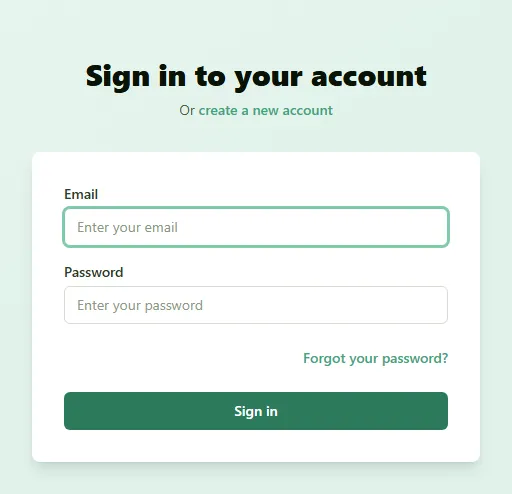
Result
Section titled “Result”You land on the page you were heading for, or on the home page. You stay signed in in that browser as long as you use LCAbyg at least once a week. If you haven’t used LCAbyg for 7 days, you have to sign in again.
Two-step verification
Section titled “Two-step verification”If you have turned on two-step verification, LCAbyg shows the page Two-step verification after you have entered your password:
- Enter the six-digit code from your authenticator app.
- Optionally tick Remember this browser for 30 days. LCAbyg then does not ask for the code in this browser for the next 30 days.
- Click Continue.
If you don’t have your phone at hand, click Use a recovery code instead, and enter one of your recovery codes.
If your organization requires two-step verification and you have not set it up yet, LCAbyg shows the page Set up two-step verification instead. Follow the steps on the page: install an authenticator app, scan the QR code, enter the code from the app, and click Turn on. Then save your recovery codes, tick I have saved the codes somewhere safe, and click Continue. See also How to turn on two-step verification.
Accept the terms of use
Section titled “Accept the terms of use”If you have not accepted the current version of the terms of use, LCAbyg shows the page Accept the terms of use instead of the app after you have signed in. This applies, for example, the first time you sign in after a colleague has created you as a user, and when the terms have been updated. At the top it says which email you are signed in as.
- Read the terms in the box, or open them in a new tab with Open in a new tab.
- Click I accept the terms of use.
You then continue to the page you were heading for. If you do not want to accept, click Log out. You cannot use LCAbyg without accepting the terms of use, but you can come back later.
How to sign out
Section titled “How to sign out”Click your name at the far right of the top menu, and choose Logout.
If you change or reset your password, you are signed out on all other devices and browsers.
If it doesn’t work
Section titled “If it doesn’t work”| What you see | What to do |
|---|---|
| Invalid email or password | Check the email for typos. If you have forgotten the password, click Forgot your password?, see How to reset a forgotten password. The same message is shown if your user has been deleted: if it still doesn’t work, contact an owner of your organization |
| Your account is temporarily locked after too many failed login attempts. Try again in a few minutes. | The password was entered wrong 10 times within a short time. Wait 15 minutes, and try again. Until then, even the correct password is rejected. If you want to get in right away, reset the password with Forgot your password?, or ask an owner of your organization for a temporary password |
| A message saying you need to verify your account | Your email is not verified yet. Find the email from LCAbyg, or click Resend verification email |
| The Reset Password page with the text “You logged in with a temporary password” | An owner of your organization has given you a temporary password. Choose your own to continue |
| The text We could not load your terms of use status | Click Try again. If it still doesn’t work, click Log out and try again later |
| Time ran out, or your password was changed in the meantime. Log in again. | More than 5 minutes passed before you entered the code from the app. Click Back to log in, and sign in again |
| The code was wrong too many times. Wait 15 minutes and log in again. | After 5 wrong codes from the app, you have to wait 15 minutes. If you have lost your phone, see How to turn on two-step verification |